

A while back I ran a video marketing campaign for a client in another state. Simple job on paper. In practice it had four completely different kinds of money in it.
The shoot was a videographer day rate, flat. Editing was hourly. Travel days were billed at half my hourly rate, because I’m sitting in an airport, not working. Overtime ran at 1.5x. And then there were the meetings with the editors that I never intended to bill, but still wanted on the record so I knew where the project time actually went.
That’s one project. Most tools will tell you it’s four.
Why this matters
When billing is set at the project level, every task inside it inherits that setting. The project is hourly or the project is fixed, and that’s the end of it. Clean model, right up until real work shows up.
Once you’re stuck there you’ve got two bad options. Split the job into four projects, or flatten everything into one fixed price.
Splitting it means the client opens an invoice and sees the same project name four times with four different numbers next to it. Nobody has ever looked at that and thought “ah, of course.” It invites a phone call every time.
Flattening it means one lump sum with nothing describing what you actually did. The client takes your word for it, and you’ve trained them to think of your work as a single undifferentiated number instead of a shoot, an edit, and the travel you discounted for them.
The multiplier math has to live somewhere too. Usually a spreadsheet. You work out 0.5x on the travel hours, 1.5x on the overtime, and type the result in as a flat number. The client sees a total with no explanation of how you got there. You’re asking them to trust the arithmetic instead of showing it.
In hrglass, billing lives on the Task instead of the Project. One Project, four Tasks, four ways of charging, one invoice at the end.
The four billing types
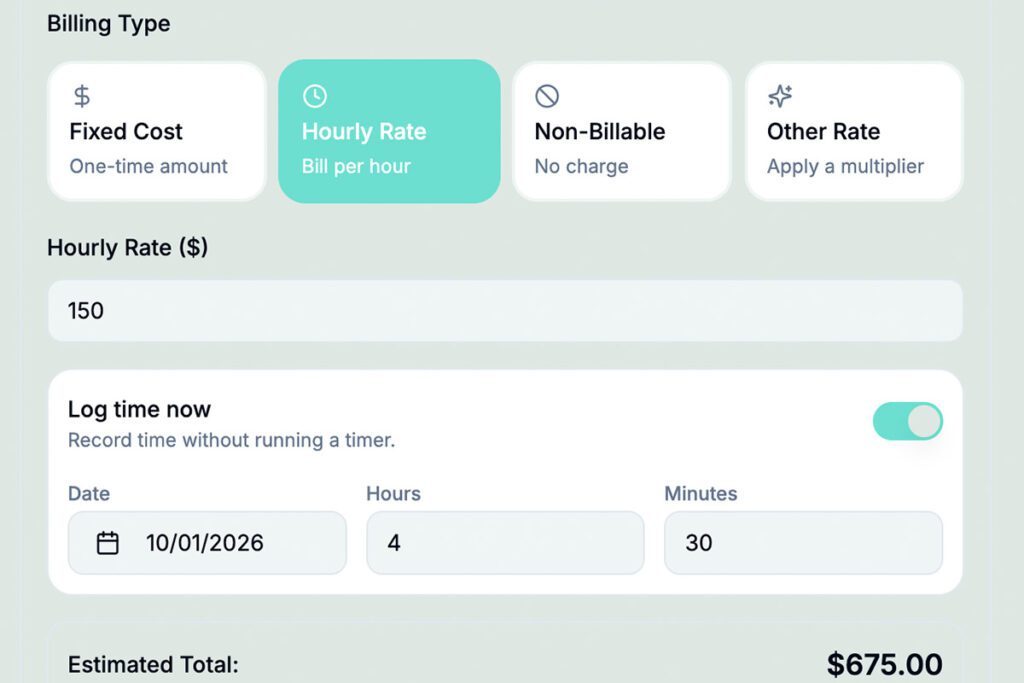
Every Task has a billing type, set under Billing Information when you create or edit it. Time you track always counts toward your hours. The billing type decides whether those hours turn into money.
- Fixed Cost. One set price for the whole Task, no matter how long it takes. New Tasks start here.
- Hourly Rate. You bill every hour you track, at the rate you set.
- Non-Billable. No charge. You still track the time for your own records.
- Other Rate. Hourly with a multiplier on top. Your base rate times something like 0.5 for travel or 1.5 for overtime.
One note before you go looking for it: Billing Information only appears if you can see financial data in that workspace. If it’s not there, your workspace owner controls it.
How to set it up
Step 1: Add your multipliers once.
Multipliers live in Settings › Billing Rates and only the workspace owner adds them. Until someone does, the Rate Multiplier list is empty. Create one for each scenario you bill differently:
Travel 0.5
Overtime 1.5
Rush 2.0
Build them once, use them on every Task from then on.
Step 2: One Task per way of charging.
If a piece of the job bills differently than the rest of the job, it’s its own Task. That’s what makes the invoice line items match the actual work.
Step 3: Set the billing type on each Task.
In the New or Edit Task window, open Billing Information and pick one.
For Fixed Cost, enter the amount in Fixed Cost ($). If you keep a services list with set prices, you can skip the typing and pick one under Assign Service, which switches the Task to Fixed Cost and fills in the price for you.
For Hourly Rate, enter the rate. If the person assigned to the Task has a default hourly rate, it fills in automatically.
For Other Rate, pick your Rate Multiplier and enter the Base Hourly Rate. hrglass shows the effective rate per hour right underneath, so you can see $90 × 1.5 = $135 before you save.
For Non-Billable, that’s it. There’s nothing else to fill in.
As you go, hrglass shows an Estimated Total for the Task, so you’re not guessing at what the job adds up to.
Step 4: Track time to Tasks as you work.
All time in hrglass is logged against a Task, which is exactly why this works. The Task already knows how it bills, so every hour is priced the moment it lands.
Step 5: Invoice from the Project.
Each billable Task comes across as its own line item with its own math. Each invoice only picks up time that hasn’t been billed yet, so you can invoice the same Task every month without double-charging anyone.
What you’d actually type in
Here’s the video campaign from the top of this post, built the way I’d build it today.
Project: Q3 Brand Campaign, Acme Co.
| Task | Billing type | What you enter |
| On-site shoot, 2 days | Fixed Cost | Fixed Cost ($): 2,400 |
| Post production edit | Hourly Rate | Hourly Rate ($): 90 |
| Travel days | Other Rate | Multiplier: Travel (0.5), Base Hourly Rate ($): 90 |
| Overtime, deadline push | Other Rate | Multiplier: Overtime (1.5), Base Hourly Rate ($): 90 |
| Editor sync meetings | Non-Billable | Nothing. It just tracks. |
Then you work the job and track your time to the right Task.
What the client gets
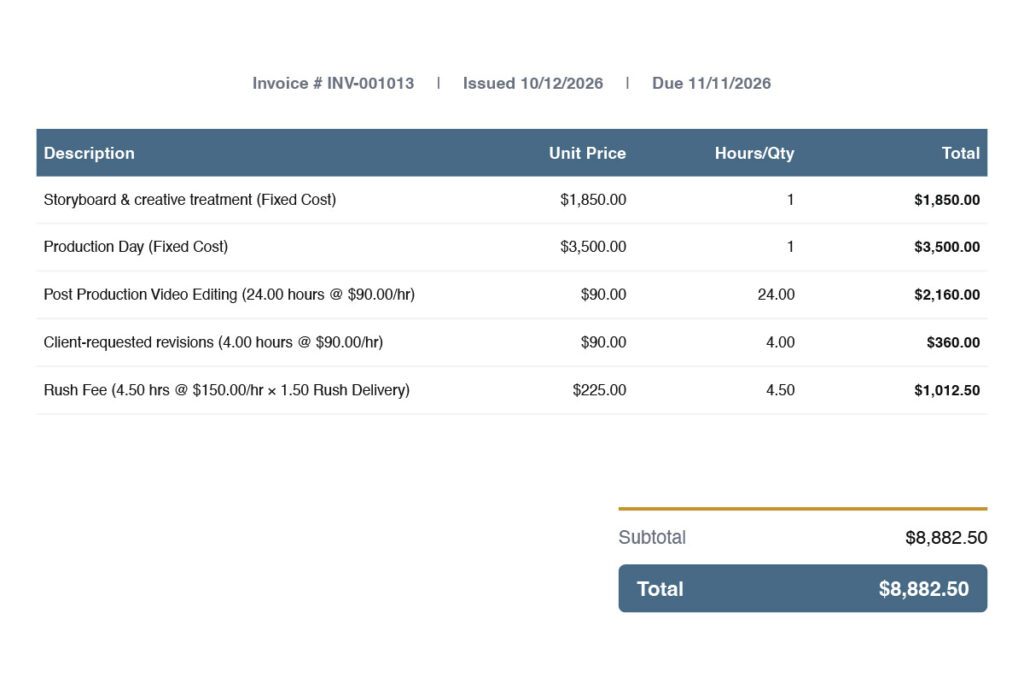
One invoice, with each billable Task as its own line.
The Fixed Cost Task shows the Task name and (Fixed Cost). The Hourly Task shows the hours and the rate, like Post production edit (12 hours @ $90.00/hr). The Other Rate Tasks show the hours, the base rate and the multiplier, like Travel days (6 hrs @ $90.00/hr × 0.50 Travel).
Clients like that last one more than you’d expect. A visible 0.50 reads as a discount you gave them. A mystery flat number reads as a number you made up.
The editor sync meetings don’t appear anywhere on the invoice. On the Timer page they’re marked Non-billable, which is exactly where that information belongs. That time is for you.
A few things worth knowing
You can bill a Fixed Cost Task in pieces. When you pick the Task for an invoice, change the Bill amount. hrglass tracks what’s left, and the next invoice can cover the rest. Deposit now, balance on delivery.
Team members without financial access can still create Tasks. Those save with no billing type and pick up a Needs billing badge. As the owner, you open the Task, choose a billing type, and save. Until then it can’t be invoiced, so nothing goes out underpriced.
Changing a billing type doesn’t rewrite history. Invoices you already sent stay as they are. The new type applies to the next one.
Who benefits from multi-rate billing?

Consulting is the obvious one. A single engagement might carry a fixed monthly scope, hourly for calls and ad-hoc requests, a multiplier for after-hours work, and a Non-Billable Task on work you’re already covering under the fixed fee but still want measured.
Contractors and trades run the same shape. Fixed price on the install, hourly for troubleshooting the thing nobody could have predicted, 1.5x for the emergency weekend call, Non-Billable for the estimate visit.
Web and design work too. Fixed for the build, hourly for revisions past the agreed scope, a rush multiplier when the launch date moves up, Non-Billable for internal QA you’d never charge for but absolutely want to know the cost of.
The common thread is a client who wants line items and an owner who bills different work differently. If that’s you, splitting one job into four projects is a workaround you’ve probably stopped noticing. It doesn’t have to be the job.